If the pen in your Collection is not spinning, your device may be asking websites to reduce animation. Pen Fight follows that preference for automatic skin rotation and the Play More button animation. It does not mean that the game is incompatible with your device.
Changing your system preference is optional and can affect other apps and websites. If you prefer less motion, keep it enabled and drag the pen preview manually, or focus the preview and use the left and right arrow keys.
Check the preview first
Open Collection and choose Pen skins. Keep the game tab visible, release your finger or mouse after dragging, and check the circular-arrow rotation button. If its label is Resume rotation, select it. When the system requests reduced motion, that button alone currently cannot override the preference.
If the preview reports that 3D is unavailable or stays blank, these animation settings may not fix it. See the game troubleshooting guide.
Windows 11 PCs and tablets
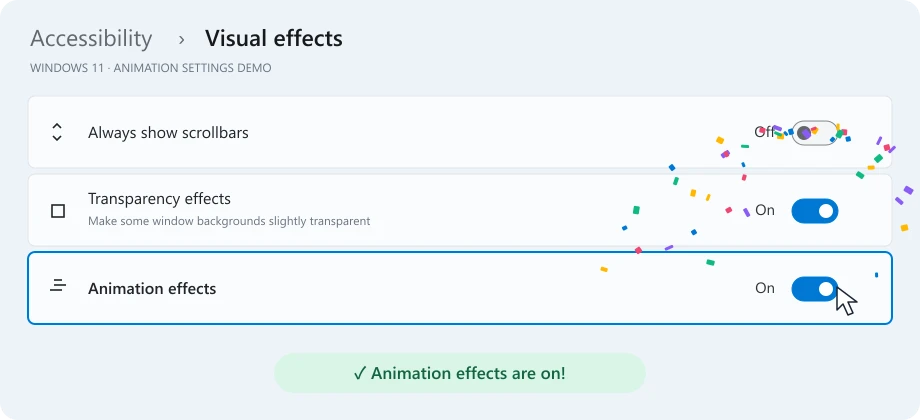
Windows 11 illustrated demo. Layouts vary by version; confetti is a teaching effect, not part of system Settings.
Press Windows + I to open Settings.
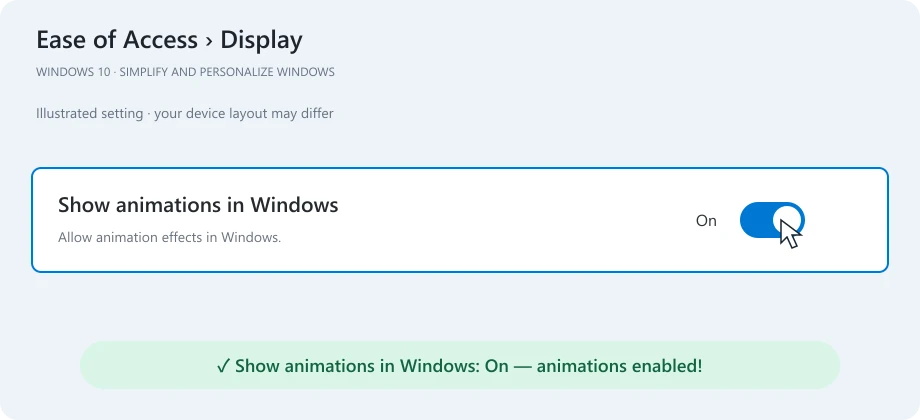
Choose Accessibility, then Visual effects.
Turn Animation effects ON.
The same setting applies to Windows tablets such as Surface. It is separate from transparency effects.
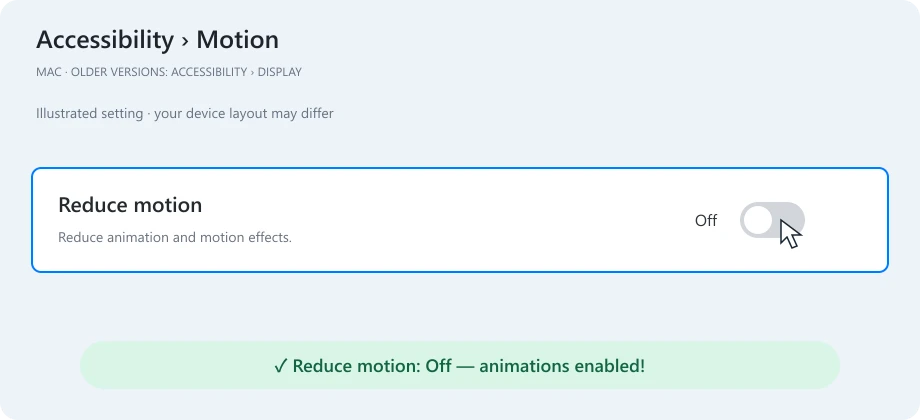
Mac illustrated demo. Layouts vary by version; confetti is a teaching effect, not part of system Settings.
Open the Apple menu, then System Settings and Accessibility.
Select Motion. On older macOS versions, look under Display instead; older systems call the app System Preferences.
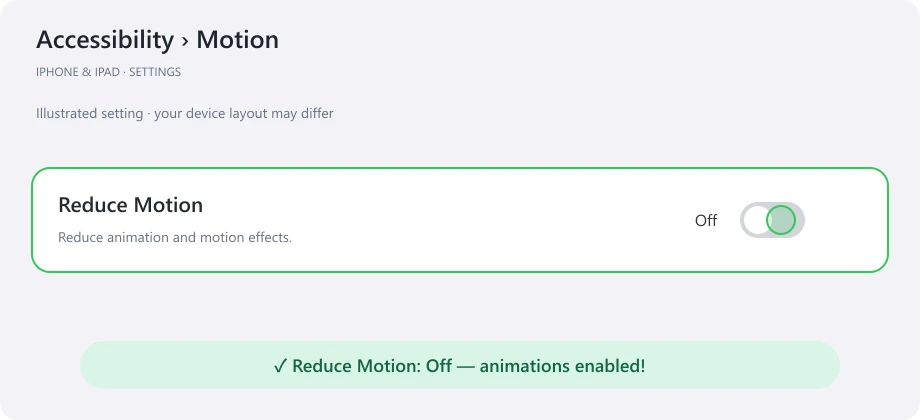
Turn Reduce motion OFF if you want automatic animations.
Search system settings for Reduce motion if you cannot find it. Auto-play animated images is a separate option; this pen preview is an interactive 3D model, not a GIF.
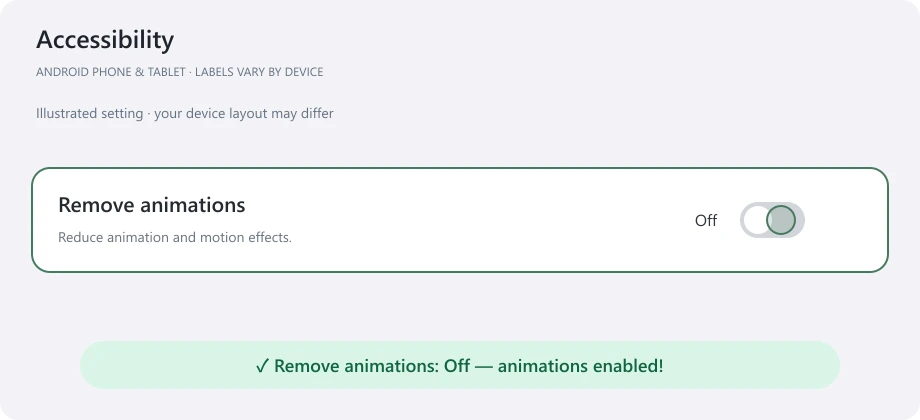
Android phones and tablets illustrated demo. Layouts vary by version; confetti is a teaching effect, not part of system Settings.
Open Settings, then Accessibility (sometimes called Accessibility features).
Find Remove animations. Depending on the manufacturer, it may be inside a display or visibility submenu.
Turn Remove animations OFF. You can also search Settings for animation if the option is hard to find.
Android 9 and later can expose this preference. Names and locations vary by brand and version; a tablet follows its operating system, not its screen size. You do not need to enable Developer options for these steps.
Switch back to your existing game tab after changing the setting.
Release any drag and enable rotation if it is paused. Automatic rotation only runs while the game tab is visible.
If the change is not picked up, finish your current match and confirm any account save before refreshing. Refreshing can interrupt the current game.
For Play More, close the dropdown, move the pointer away and click elsewhere to remove keyboard focus. Its decorative bounce pauses while the menu is open, hovered or focused. The menu still works without animation.
In the mobile portrait view, select Play / interact before using the skin controls; Move view is for scrolling around the game frame.
If motion still does not work, tell us your operating system, browser and whether you can drag the pen manually through Contact. A graphics or loading problem needs a different fix.
If you opened this guide from the game, close this tab to return to that same session. Otherwise, open Pen Fight or read the full How to Play guide.