Learn the pull-and-release controls, choose a solo or multiplayer mode, and find the exact steps for unlocking pens and classroom scenes. This guide covers Desk Legends on PenFight.org, including Raid, AI practice, shared challenges and saves.
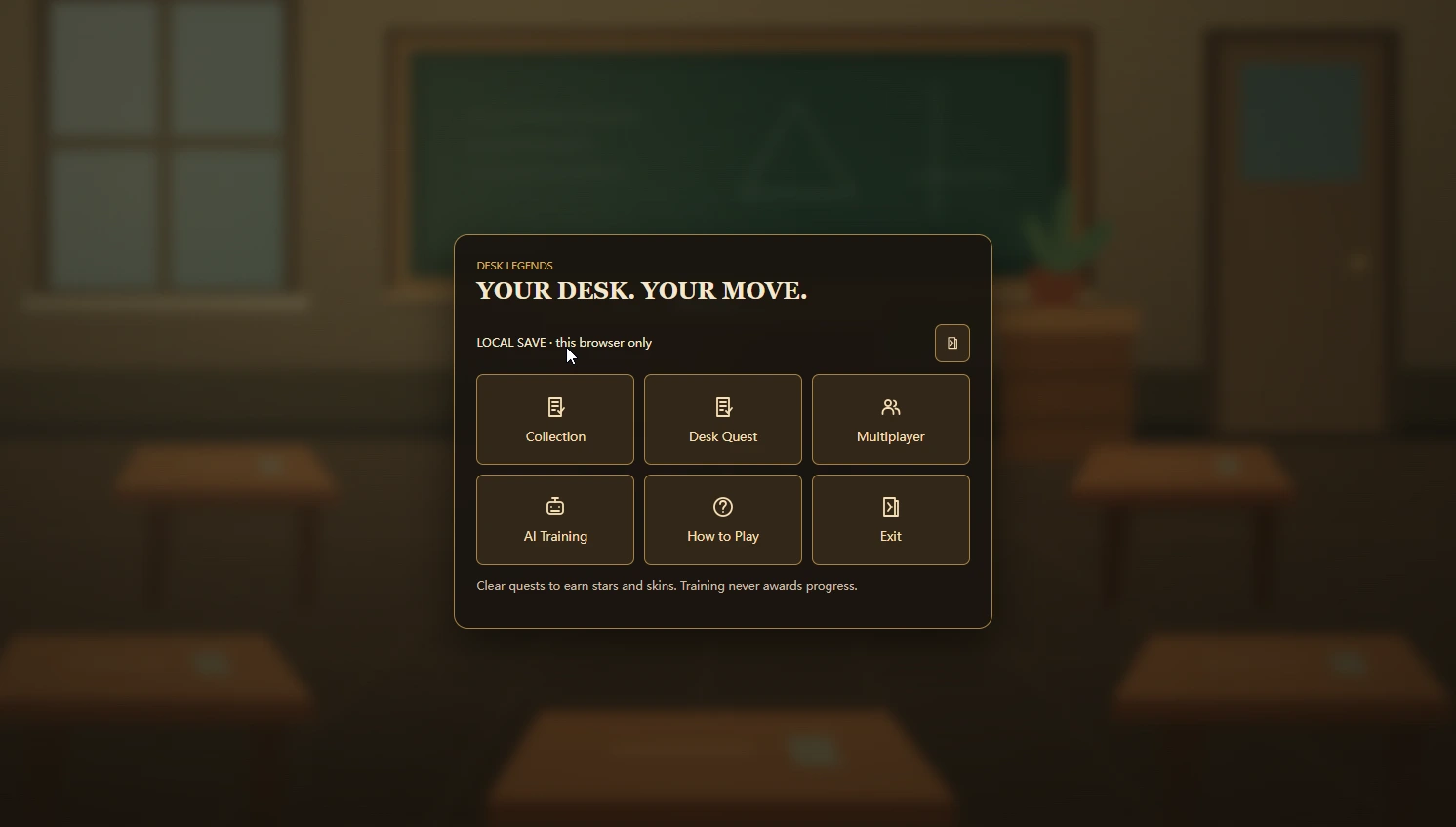
Open the game on the homepage. In Desk Legends, choose Desk Quest, AI Training or a friend room, then select competitive play or Co-op Raid. Use Google sign-in for account-backed quest progress when the edition’s account services are connected, or choose guest play without account sync.
02
Choose your pen and your setting
Desk Legends starts with Classic Red, Classic Blue and Classroom. Before a solo quest or training match, pick an unlocked pen and background. The collection below shows all eight skins, their effects and the three background choices.
03
Press, pull back and read the power
Press your own pen and drag away from the intended shot. Pull down-left to shoot up-right. Start with a short pull, watch the aiming guide and leave room for the rebound. In a friend room, press READY on your turn before aiming.
04
Release and let the pens stop
Release to flick. A central hit tends to push; an off-centre hit can add spin. Wait for motion to finish before the next turn. In Desk Legends, move into CANCEL SHOT before releasing if you want to abandon an aim.
05
Finish a challenge, then choose your next goal
In Desk Quest, win and review the star requirements for your difficulty. Better results unlock collection rewards. In a competitive room, compare the match result and agree to a rematch. In Co-op Raid, clear both enemies before the wave limit and keep an ally on the desk to advance. In AI Training, review the feedback and repeat one skill rather than chasing a score.
Pen Fight rules
Knock opponents off and stay on the desk
A confirmed fall from the 3D desk eliminates a pen. Plan both the hit and your rebound: sending yourself over the edge can end your attempt. Let the board settle before judging the result.
Take the turn that belongs to you
In a friend room, check your seat, wait for your turn and press READY before aiming. You control your own pen; players do not all fire at once. Read the multiplayer room guide for invitations, teams and rematches.
Read the objective for your mode
Solo quests add level-specific star requirements. Free-for-all pits individual pens against each other, while 2v2 uses assigned teams. Co-op Raid asks your group to clear enemy waves within an action limit.
Avoid three common mistakes
Pulling toward the target sends the shot the wrong way. Maximum power can carry your pen off after impact. Shooting before your turn is ready does not create a valid room move. Start with a short pull and a clear route.
Your next desk challenge
Find your way to play Pen Fight
Choose a goal to explore our Desk Legends edition. This guide does not submit scores, unlock items or start a match.
Desk Legends guide
Desk Quest
Work through 10 desk challenges. Earn stars separately on Rookie, Standard and Expert to collect six additional pen skins. Clear quests 3 and 6 to unlock two new backgrounds.
Start with First Flick and learn a controlled knockout.
Replay for better stars; each difficulty has its own reward track.
Choose an unlocked pen and background before the next solo match.
Choose Desk Quest for stars and collection unlocks, Co-op Raid for shared waves, competitive rooms for versus matches, or AI Training for practice.
Desk Legends collection · Unlock guide
Eight pen skins. Three places to play.
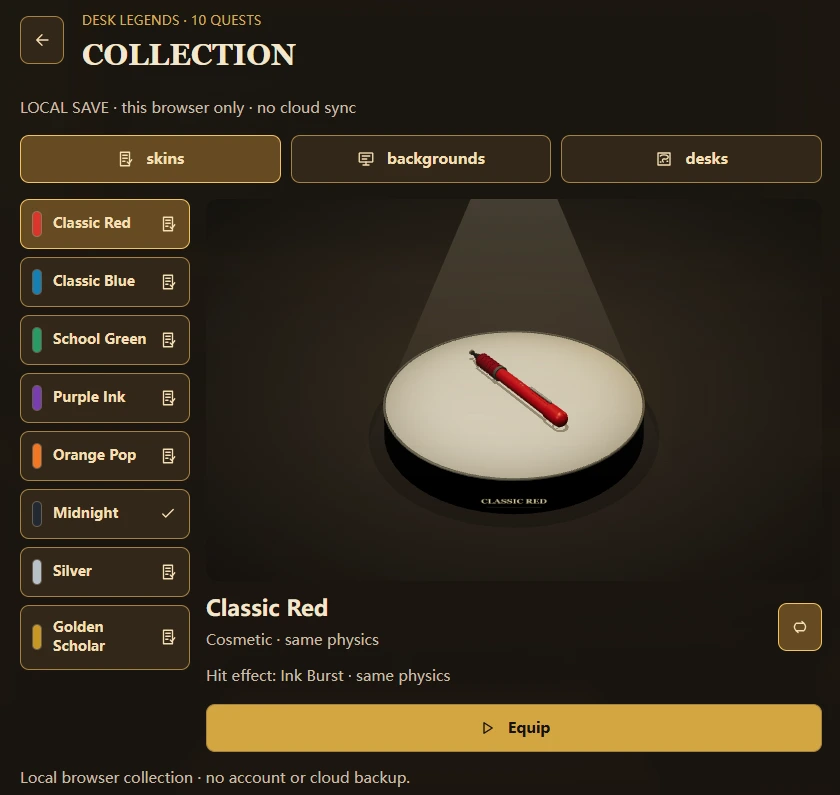
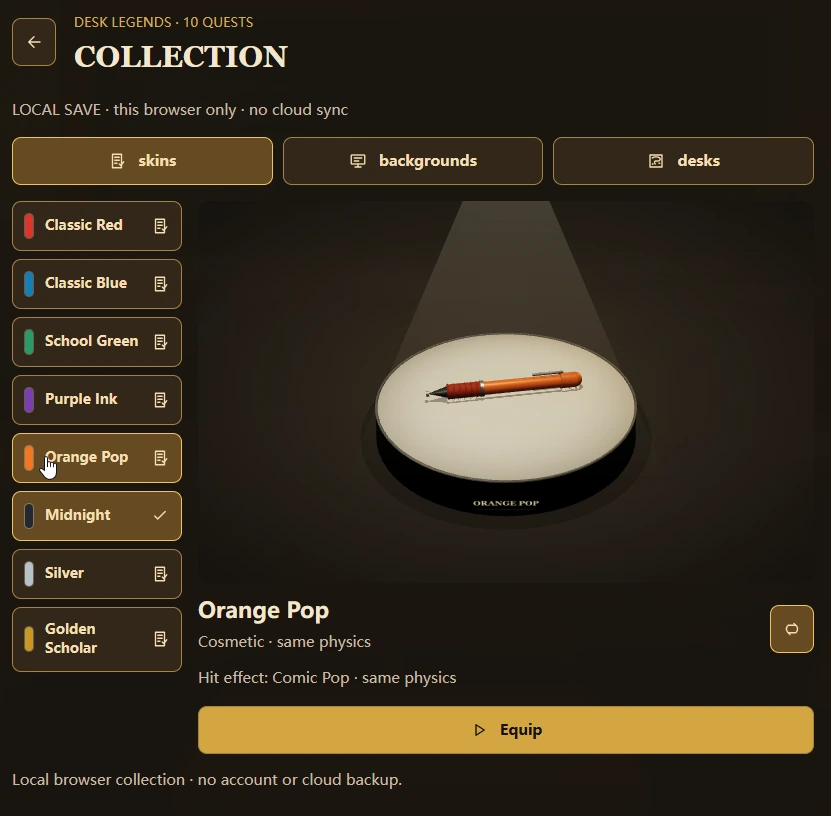
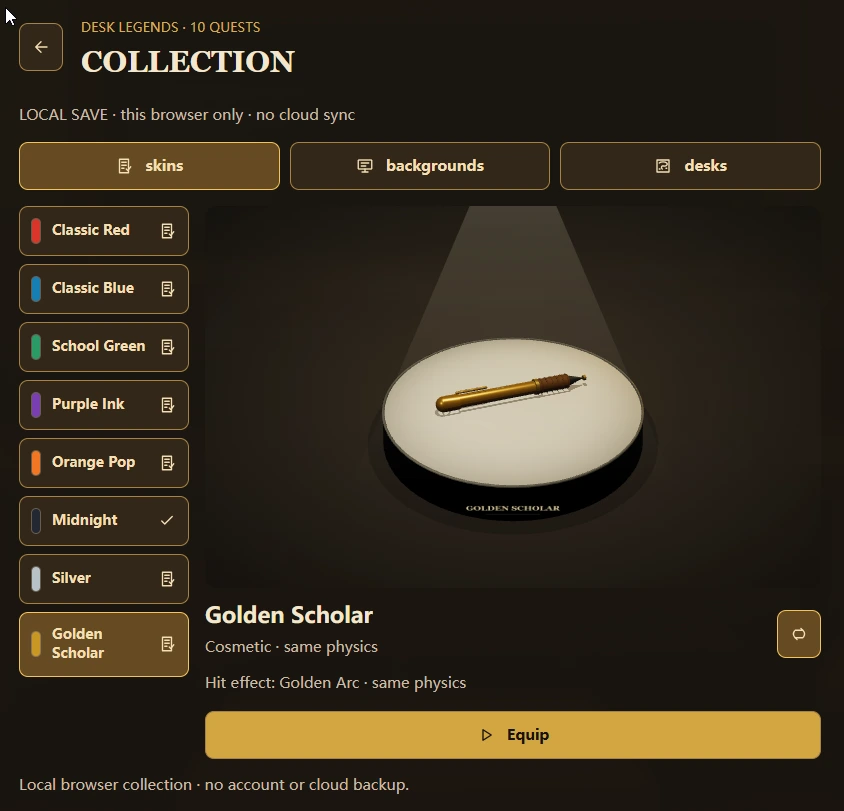
Quest stars unlock looks, not extra force. Every pen skin uses the same physical rules; its body, grip, metal finish, impact, knockout effect and movement trail give it a different personality. These collection captures show three of the available looks.
Stars are counted within each difficulty, using your best result for each quest. Repeating the same result does not keep adding stars. Classic Red and Classic Blue are ready from the start.
Classic Red: the starting red pen, paired with the Ink Burst effect.View full size ↗Orange Pop: a warm orange finish with the Comic Pop effect.View full size ↗Golden Scholar: a gold finish with the Golden Arc effect.View full size ↗
Classic Red
Red body, dark red grip and silver fittings.
Ink Burst: a red ink impact, knockout burst and short trail.
Available from the start
Classic Blue
Blue body, deep blue grip and silver fittings.
Ripple: a fine blue ring impact and blue movement trail.
Available from the start
School Green
Green body with a dark green grip and mint accents.
Leaf Scatter: a green, leaf-like scatter with a matching trail.
3 total Rookie stars
Purple Ink
Purple body, deep violet grip and lilac accents.
Ink Spiral: a turning purple ink arc and violet trail.
9 total Rookie stars
Orange Pop
Orange body, burnt-orange grip and bright warm accents.
Comic Pop: an orange burst with a wide, playful scatter.
3 total Standard stars
Midnight
Charcoal body, black grip and muted metal fittings.
Shadow Slash: a stretched dark slash and subtle trail.
9 total Standard stars
Silver
Metallic silver body with a graphite grip.
Silver Spark: a bright angular spark, silver knockout and trail.
3 total Expert stars
Golden Scholar
Gold body and fittings, brown grip and pale gold accents.
Golden Arc: a curved golden impact, knockout and gold trail.
9 total Expert stars
How to unlock Pen Fight classroom backgrounds
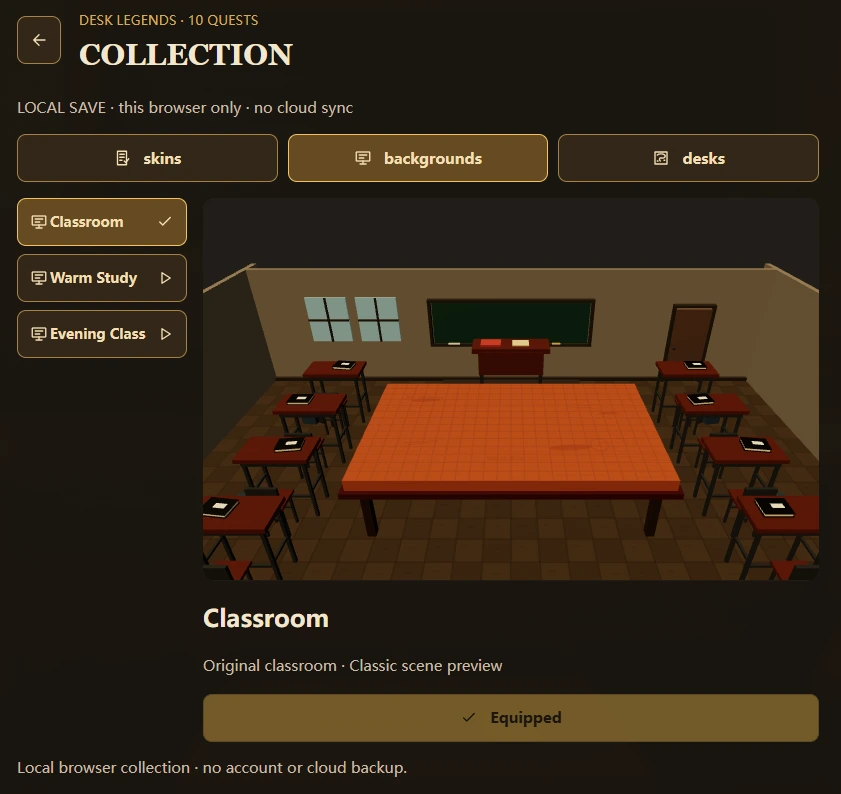
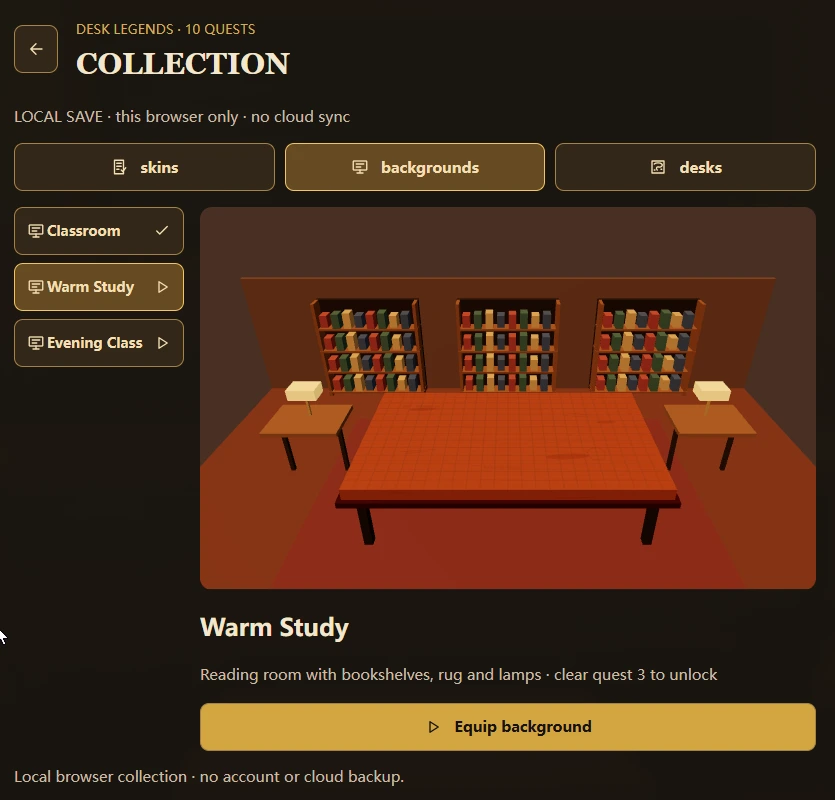
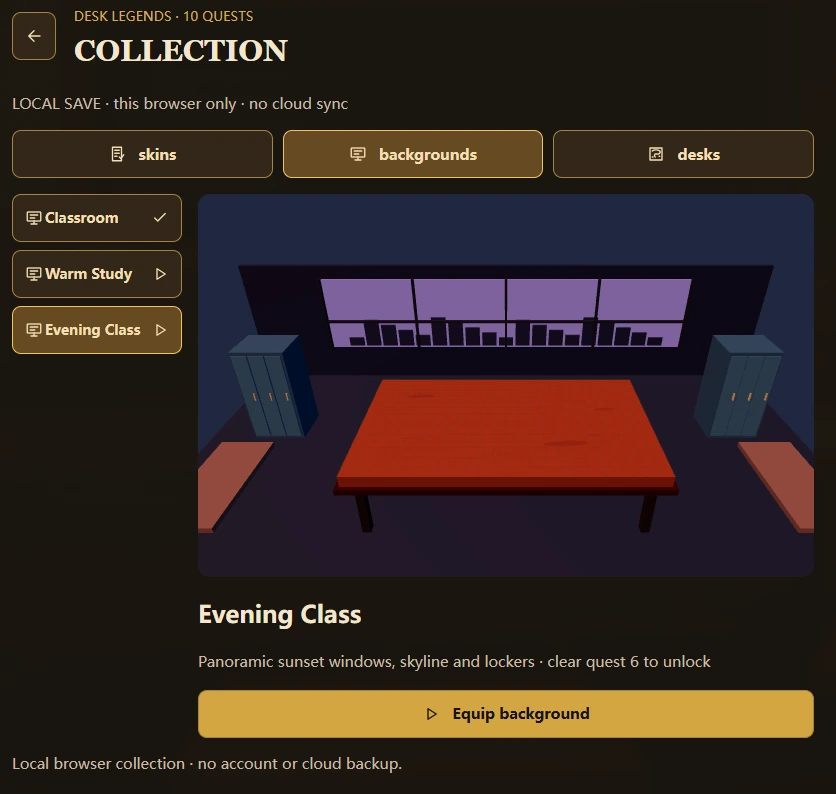
Backgrounds change the surroundings, not the strength of your shot. Preview and equip them for solo quests and training. The room scene in multiplayer is controlled separately; a personal background does not change everyone else’s room.
Start with Classroom, then clear Clean Strike (quest 3) for Warm Study and Long Slide (quest 6) for Evening Class. Any difficulty counts; you do not need three stars for these scene rewards. Clear preceding quests to open the next level, then visit Collection to preview and equip your unlocked scene.
Desk Guard, Twin Flanks and Crossfire are Raid battle layouts, not additional collectible backgrounds. Raid medals and AI Training results do not unlock these scenes.
Classroom
The original schoolroom, with surrounding desks, chairs and a blackboard. Classic and CC0 Wood are dressing options for this classroom, not separate reward backgrounds.View full size ↗
Available from the start
Warm Study
A separate reading room with bookshelves, a rug and warm reading lamps.View full size ↗
Clear quest 3: Clean Strike on any difficulty
Evening Class
Panoramic sunset windows, a distant skyline and classroom lockers.View full size ↗
Clear quest 6: Long Slide on any difficulty
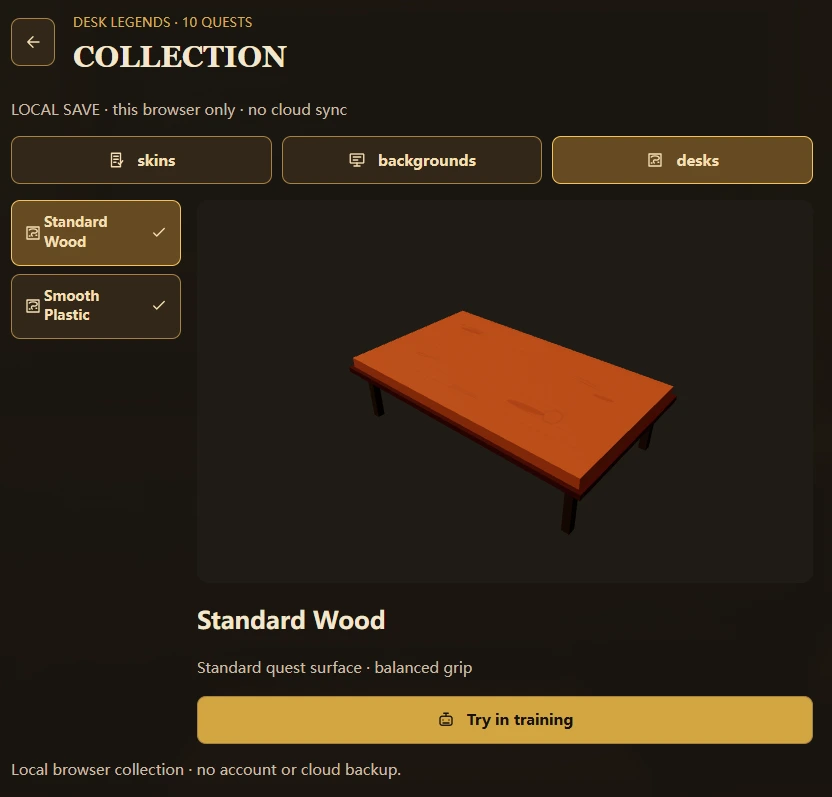
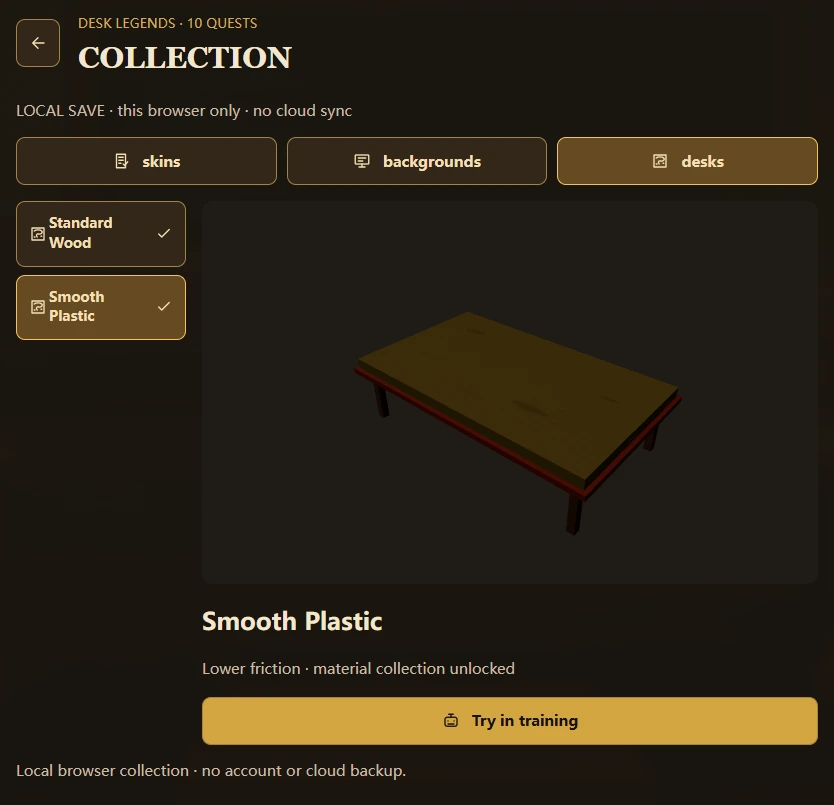
The Classroom also has Classic and CC0 Wood furniture looks. Desk surfaces are a separate choice: Standard Wood is the starting surface; Smooth Plastic is collected after quest 5 and is already selectable in training. Unlike decorative backgrounds, surface friction changes how far a pen slides.
Game physics · 03
How Pen Fight turns a mouse drag into a bouncing desk shot
Standard Wood gives the starting desk its balanced grip.View full size ↗Smooth Plastic has lower friction: allow more room for the pen to stop.View full size ↗
Reverse-direction launch vector
The direction of the pull is opposite to the direction of the shot: drag left to shoot right, down to shoot up, or diagonally away from your target. Pull distance increases power up to a limit. A controlled short shot is often enough when an opponent is already near an edge.
Linear speed and spin
The contact point matters as much as force. A centred collision mainly pushes the other pen; an off-centre hit can turn it and redirect both pieces. Plan the attack and the space you need after contact.
Collisions and obstacles
Desk Legends uses a 3D desk with solid obstacles. Eraser gates, a diagonal ruler and a corner book change the route to the target. Aim around an end or through an open lane instead of repeatedly firing into the same blocked line.
Friction, turns, and the edge rule
Wood gives a different slide from smoother plastic, and wet areas require extra care. In Desk Legends, a confirmed fall off the desk decides elimination. Decorative skins never change the physical rules.
Build consistent shots with these Pen Fight angle and power habits. In a friend room, read your own seat and pen rather than assuming that red is always yours.
Step one: identify the nearest edge
Do not aim at the blue pen’s center automatically. Compare its distance to the top, bottom, left, and right boundaries, then choose the shortest knockout route. If blue is nearest the top edge, your red pen should hit upward—which means pulling the mouse downward because the launch reverses the drag. The goal is not the biggest impact; it is the least force needed to cross the nearest line.
Step two: use center hits to push and side hits to turn
Contact near the blue pen’s center transfers linear motion more directly and is ideal when blue already points toward an edge. Contact near a side or end adds more rotation, which can turn an awkward horizontal target toward the boundary but is harder to predict. Practice center hits first. Use off-center contact when blue has an unfavorable angle or when a straight hit would carry red along the same dangerous route.
Step three: control power instead of always pulling fully
Force increases with drag distance, but more is not always better. Red keeps moving after contact, so an excessive direct hit may eject blue and still rebound red across another boundary. Use a short or medium pull when blue is already near an edge. Reserve longer pulls for large gaps where red also has plenty of open desk behind its expected rebound.
Step four: plan red’s second path
Every shot contains two routes: the attack before contact and the rebound afterward. If red is near the left boundary, avoid a contact angle that sends it farther left. The ideal collision pushes blue along its shortest route out while redirecting red toward the middle. Even without an immediate knockout, finishing near the center reduces the bot’s chance of winning with one short return shot.
Step five: read the edge before the next shot
A confirmed fall from the 3D desk eliminates a pen. A light finishing push is safer than a maximum-power chase when your own pen is near an edge.
A practical training routine
Begin with ten purely horizontal or vertical shots to build reverse-drag muscle memory. Next, use one angle with short, medium, and long pulls to compare distance. Finally, practice hitting blue at the center, one-quarter point, and end. Changing only one variable per attempt teaches speed, rotation, and rebound distance faster than random maximum-power flicks.
Rules & rhythm · 05
Win the desk. Choose your next challenge.
Desk Quest: progress with a purpose
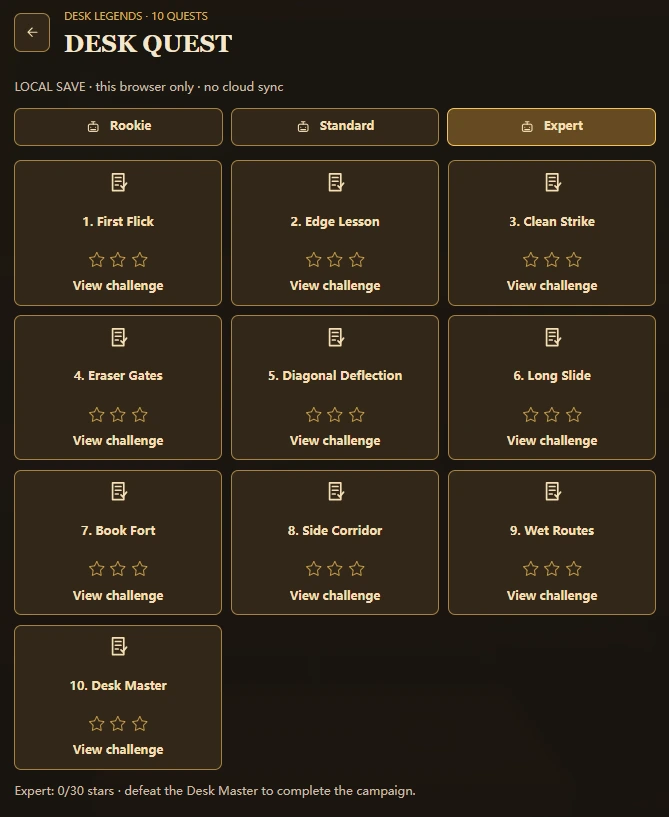
Ten quests, three difficulty tracks: choose a challenge and work toward its stars.View full size ↗
Ten levels move from First Flick, Edge Lesson and Clean Strike to Eraser Gates, Diagonal Deflection, Long Slide, Book Fort, Side Corridor, Wet Routes and Desk Master. Rookie, Standard and Expert have separate star totals. Finishing a quest opens the next; replaying for better stars works toward a new skin.
Rookie rewards School Green and Purple Ink, Standard rewards Orange Pop and Midnight, and Expert rewards Silver and Golden Scholar. Each pair unlocks at 3 and 9 total stars in that difficulty. Backgrounds follow first clears on any difficulty: quest 3, Clean Strike, unlocks Warm Study; quest 6, Long Slide, unlocks Evening Class. Quest 5, Diagonal Deflection, collects Smooth Plastic. Open Collection to preview and equip an unlocked background before a solo match.
Friend rooms: one desk, up to four seats
Use an invitation link or room code to meet friends. Choose free-for-all or 2v2, or switch to Co-op Raid for a shared objective.
Pick a difficulty, wood or plastic, and an obstacle setup. Repeat a tricky route without chasing quest stars. Fixed keeps the selected opponent difficulty. Optional Adaptive reviews three completed games and adjusts at most one difficulty step for the next game.
Training feedback uses what happened in the match, including missed hits and risky stopping positions. Adaptive changes decisions, not mass, friction or your shot power. Its learning resets when you leave the training session.
Desk Legends guide
Pen Fight Co-op Raid: three waves with friends
Create or join a friend room, choose Co-op Raid and invite at least one other human player. Two to four humans can play; bots fill the remaining seats on your four-pen team. Two enemy pens have their own slots. The host chooses a mission before the team readies up.
Choose your Raid mission
Desk Guard: begin facing the enemy pair, follow them to wider positions in wave two and approach a tighter formation in the final wave.
Twin Flanks: your team starts around the centre while enemies occupy opposite sides. Check both edges before committing to a push.
Crossfire: allies and enemies start across opposing corners. Plan a clear route without knocking a teammate into danger.
Clear waves and face Desk Warden
Each mission has three waves and a 24-action limit per wave, including enemy turns. Knock out both enemies while at least one ally remains. Allied pens return for the next wave; the final pair is Warden Guard and Desk Warden. Boss decisions change the challenge, not pen mass or shot strength.
All allies falling off, or reaching the action limit, ends the attempt. The result shows wave actions, elapsed time and friendly knockouts. Use it to improve your next attempt, then vote to retry with the connected team.
Raid medals and shared challenges
A full clear awards teammates a Raid medal and a win within that room. Raid does not award Desk Quest stars or unlock collection backgrounds. You can also share a timed Raid challenge and match its mission and human seats. Shared targets are unverified, include waiting and reconnect time, and award no extra unlocks.
Choose solo quests for collection progress, competitive rooms for versus matches, or Raid for a shared team challenge.
Challenge a friend
Share a quest result or a Raid target
Beat a solo quest in fewer shots
After a quest win, choose Challenge a friend to copy a challenge link, or Save card to preview a result card. The challenge result compares your shot count with the shared target. A lower count beats it; an equal count matches it.
Shared scores are unverified. Challenge runs do not award quest stars, unlock skins or advance your collection. Return to normal Desk Quest for progression.
Try a timed Raid challenge
A shared Raid target specifies a mission and human seats. The room host applies it before the match; the team must match those seats to start. Changing the mode or mission clears the applied target.
The time includes waiting and reconnects, and a shared target is not a verified leaderboard record. It adds a goal for your group, not extra collection rewards.
Keep your progress
Guest play, Google sign-in and cloud saves
Guest play uses temporary progress in the current tab. Choosing Exit clears that guest session. For account-backed progress, use Google sign-in and check the cloud-save status before leaving. Quest stars, unlocked collection items and equipped choices are separate from the medals and wins recorded inside a multiplayer room.
Cloud saving needs a working connection to the account service. If the game reports pending changes or a sync error, keep it open and use its sync controls before switching devices. Do not treat an equipped skin on screen as proof that the upload has finished.
Browser desk · 05
Desktop, mobile, fullscreen, and troubleshooting
Desktop is the recommended setup
Use a current version of Chrome, Edge, Firefox, or Safari with JavaScript enabled. A mouse offers the clearest drag-and-release gesture. Keep browser zoom near 100 percent if the pointer and pen appear misaligned, and avoid beginning a drag outside the canvas. Fullscreen can create more visual room, and wait for the game view to resize before aiming again.
Mobile play is experimental
Desk Legends needs further phone and tablet testing. This site scales the canvas visually so it fits narrower screens, but visual scaling cannot guarantee that every device maps touch coordinates perfectly. Landscape orientation gives the arena more width. If a finger press lands away from the visible pen, return to normal browser zoom or use a desktop computer rather than repeatedly fighting the offset.
If the game does not start
Select Enter the 3D desk in the player. If loading stalls, reload once and check whether a privacy extension blocked game scripts or assets. Keep the game tab open while it loads. If the problem continues, send your browser version and the error shown to our support contact.
If the canvas is blank
Wait a moment, then reload once. A persistent blank area can point to blocked JavaScript, a failed asset request, or an unsupported browser. The 3D classroom and game assets can take a moment to load. Opening the player in fullscreen will not repair a missing script. Update the browser, temporarily disable aggressive script blocking for penfight.org, and try again.
If dragging does nothing
Click directly on your own pen, hold, move, and release. In a Desk Legends room, check your seat and wait for your turn. Also confirm that no game-over or menu overlay is covering the canvas. Resume from the menu or choose Restart to restore an active round.
Privacy and local hosting
The core game is served from this same domain rather than framed from a third-party deployment. That reduces dependency on an external live copy, but the website host and lightweight analytics service may still receive standard technical information. Read the Privacy Policy for details. The Desk Legends edition also supports account services for Google sign-in and cloud quest progress. Guest play does not sync to an account; room medals remain separate from collection saves.
Watch & learn · 06
Pen Fight videos
These existing pen-fighting clips illustrate the tabletop idea; they are not footage of the new Desk Legends modes. Return to the arena to practise the angles.
Short 01
Pen fight quick clip
Short 02
Another desk battle
Video 01
Pen Fight gameplay
Video 02
More pen fighting action
Ready for another round?
Return to the game to try the shot, invite a friend or work toward your next unlock.